
Top free ad blocker and popup blocker to get rid of annoying ads

You can’t escape ads while browsing or playing a game. Most of them exist to push a product or service while using an app or website. It’s something your favorite app or site may use to survive, but some sites go a little crazy and not optimize for good user experience. If you are constantly bombarded by annoying ads and want to enjoy a cleaner, faster, and more private mobile experience then Ad blockers are the solution! They not only remove intrusive ads from apps and browsers but also help to reduce data usage and improve battery life.
Choosing the right ad blocker can be tricky with so many options available. This article will explore some of the best free ad blockers for Android, based on user ratings, features, usability, and overall performance. Let’s dive in and find the perfect ad-blocking solution for you!
Is there an adblock for Android?
Dreaded Pop-up ads were reserved for desktop/laptop computers but they made their way to smartphones as mobile devices are on everyone’s hand. So, the consumers now need some good ad blocker apps. The vast majority of Ad blockers in the Play Store are less than stellar, and you cannot rely on Google Play Store reviews these days.
How do I block ads on Android?
So, how to stop pop up ads and video ads from filling up the screen? Installing an AdBlock app will stop ads from showing up, thus allowing us to use a smartphone without being berated to ‘purchase this item,’ or ‘visit this site.’
Offering up a free Ad blocking service is also a surefire way to lure folks to install shady software. Downloading a bad app can cause a whole new set of problems as your next stop may be searching for a Malware detector.
Best Adblocker Options to Block Ads for Android?
System-Level DNS Protection: The Simplest Solution

The easiest and quickest way to block ads on your Android device doesn’t even require an app download. By simply adjusting your device’s Private DNS settings, you can eliminate most ads across your entire system.
To implement this solution, navigate to:
- System Settings
- Network and Internet
- Private DNS
- Select “Private DNS Provider Host name”
- Enter “dns.adguard.com” and save
This method offers excellent system-wide ad blocking with minimal battery impact. The main drawback is the lack of customization—you can’t whitelist specific apps or websites unless you completely disable the protection.
NextDNS: System-Wide Ad Blocking Without an App

NextDNS takes the DNS approach to the next level, offering a fantastic balance of simplicity and customization. What makes NextDNS stand out is that it doesn’t require downloading any app while still providing comprehensive control through their web interface. It offers a custom DNS hostname that you enter into your Android’s private DNS settings. After signing up with just an email and password, you’ll receive a custom hostname to enter in your Android’s Private DNS settings. From there, you can manage everything through their web dashboard.
The setup is straightforward: navigate to Network & Internet > Private DNS and enter the provided hostname. The beauty of NextDNS lies in its customizability via their website. You can tailor ad-blocking lists, add security features, and even implement parental controls. It’s a genius solution for those who prefer a lightweight, no-app approach.
Pros
- Easy setup
- Minimal battery impact
- System-wide blocking
- Highly customizable through the website
- Extra security features
- Parental controls
- Detailed analytics
Cons
- Requires initial setup via the website
- Lacks whitelisting within the phone’s settings (unless using custom hostname)
- Limited free tier (300,000 DNS queries/month)
Unlike traditional ad-blocking apps, NextDNS operates at the DNS level, making it more efficient and less resource-intensive. It provides a broader level of customization compared to simple ad-blocking apps. NextDNS is ideal for users who want a set-and-forget solution with system-wide ad blocking and extensive customization options. It’s perfect for tech-savvy users who don’t mind setting things up via a website.
AdGuard: The Premium Ad Blocker with a Price

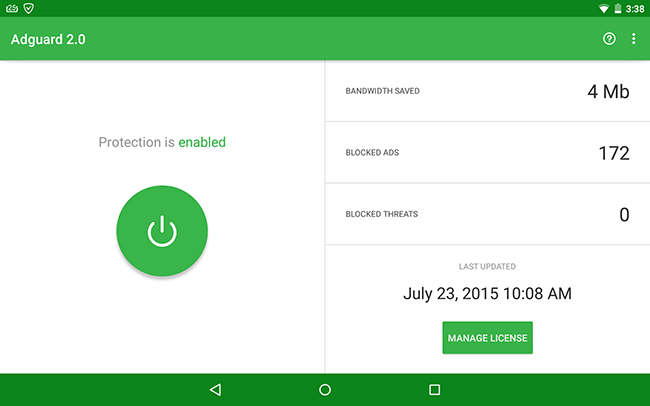
AdGuard represents the premium tier of ad blocking, offering features that go beyond simple DNS filtering. It’s the only solution on this list that not only blocks ads but also removes the empty spaces left behind, creating a cleaner browsing experience.
AdGuard is a comprehensive ad blocker that not only blocks ads in apps and browsers but also removes the blank spaces left behind, providing a cleaner visual experience. AdGuard boasts a user-friendly interface with numerous features, including custom DNS server selection, stealth mode to protect personal information, and HTTPS filtering for enhanced ad blocking within browsers. You can also specify which apps to ignore.
Pros
- Blocks ads and removes blank spaces
- Customizable filtering
- Stealth mode
- HTTPS filtering
Cons
- Requires a paid subscription for full ad-blocking functionality
- Consumes more battery than DNS-based solutions
- Privacy concerns due to traffic processing
AdGuard offers more comprehensive ad blocking than NextDNS and other DNS-based solutions by also removing blank spaces. However, it comes at the cost of battery life and requires a subscription for full functionality. AdGuard is recommended for users who want the most comprehensive ad-blocking experience and are willing to pay for it. It’s suitable for those who prioritize a visually clean browsing experience and don’t mind the battery drain.
Adguard can block ads coming your way through browsing the internet, but can also kill advertisements in other applications. Features include a firewall, phishing and malware protection and increased web page speed. There also built-in VPN options available.
Rethink DNS: Best Free Comprehensive Solution

Rethink DNS offers impressive ad-blocking capabilities without any subscription fees or in-app purchases. While it doesn’t remove the empty spaces left by ads like AdGuard, it excels at blocking advertisements across both apps and browsers. Rethink DNS is a free, open-source DNS-based ad blocker with a built-in firewall that allows you to block apps from accessing the internet. Rethink DNS blocks ad-tracking queries and allows you to block internet access on a per-app basis. The app also boasts an active community and frequent updates.
Pros
- Completely free with no hidden costs
- Includes additional firewall functionality
- Active community and developer support
- Regular updates
Cons
- Higher battery consumption than DNS-only solutions
- Doesn’t remove ad spaces
- Interface could be more intuitive
The interface is functional though not as polished as some competitors. Regular updates (approximately every 1-2 months) ensure continued effectiveness. Rethink DNS is the best completely free option for users who want comprehensive ad blocking and don’t mind some additional battery consumption. Its firewall features make it particularly valuable for privacy-conscious users.
AdAway: The OG Ad Blocker (Root Required for Full Functionality)

AdAway is a classic ad blocker that requires root access for full functionality but can also be used without root using a VPN. With root access, AdAway edits your system host files to block ads, eliminating the need for a constantly running VPN. Without root, it functions like other VPN-based ad blockers. AdAway is another awesome option if you need something stronger than a plug-in.
Pros
- Most efficient ad blocking for rooted devices
- Minimal battery impact when used with root
- Established reputation and reliability
Cons
- Requires root for optimal performance
- Similar to other options when used without root
- Advanced setup process
This particular application is set up with host files that hit any ads coming your way with a quick change of direction. The redirect effectively kills pop-ups, banner ads, and any advertisements shown in games as well. Want a bit more control over your content? The Whitelist option can take care of that. Techies will also appreciate the open-sourced nature of AdAway as it’s not going to be an app that goes long without an update.
AdAway is free from F-Droid, but again, you will need Root access. You can read more about the app on the official site if you are still on the fence.
Blockada 5: Customizable Blocklists and DNS Hosts

Blockada 5 is a DNS-based ad blocker that allows you to choose from a variety of different blocklists and DNS hosts. Blockada 5 offers a user-friendly interface with a wide selection of blocklists and DNS hosts to choose from. The app also has an active community and regular updates. In addition, it also saves data usage and optimizes the device for speed boost.
Pros
- User-friendly interface
- Wide selection of blocklists and DNS hosts
- Active community support
- Regular updates
Cons
- Does not remove blank spaces like AdGuard
Blockada 5 is similar to Rethink DNS but offers a wider selection of blocklists and DNS hosts, giving you more control over your ad-blocking experience. Blockada 5 is recommended for users who want a customizable ad-blocking experience with a wide range of blocklists and DNS hosts. While its core functionality is similar to other DNS-based blockers, its polish and active development make it a strong contender.

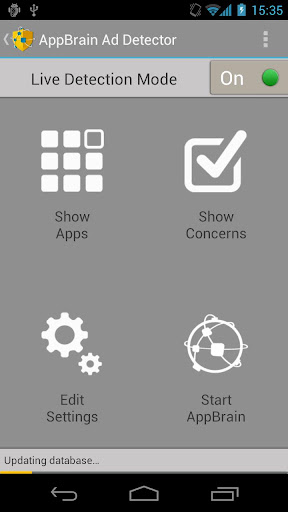
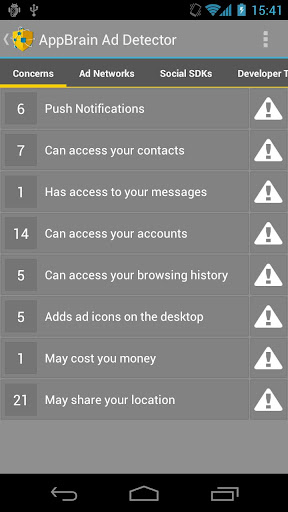
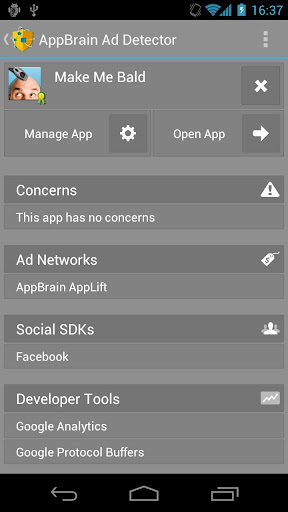
While the AppBrain Ad Detector can block pop-ups and ads, the way it goes about it is different. It can actually “sniff” them out and goes far beyond just snooping for the usual piece of advertising. AppBrain can lock down spam ads and push notifications while detecting harmful app networks.
Using the AppBrain is simple for rookies and pros alike. There is a tab for “Concerns” which quickly allows you to see if any harm is headed your way. From there you can look at any ad networks that are connected along with social SDKs and Dev tools.


Adblocker Browser is a solid option if you don’t mind switching from your normal browser are want something a little different graphically. It will kill any Ad coming your way on the web. It also destroys pop-ups, video ads, banner ads and can also supposedly stop any sites trying to track your footsteps with cookies.
Whether it’s shady cookies or ad set up on auto-play, Adblocker can cover the most people’s needs. The app (and its ad-blocking feature) are free to download and use although there are in-app purchases that allow for a few additional features and themes.
Adblock Browser isn’t much different from other ad-blocker as it zaps most advertisements from websites including pop-ups.
It blocks all incoming ads by default but also allows users a measure of control. You can opt to let in advertising deemed nonintrusive or configure a list of filters based on different dialects. There are several other options that can help with your privacy as well by letting you disable tracking, anti-ad blocking messages, malware domains, and social media buttons.
Is there an Adblock for Chrome mobile?
Although some of the apps claim to works as a chrome adblocker they might not work very well. But luckily you can turn off pop up ads easily.
How to turn off pop-ups on chrome browser android?
-
Open the Chrome browser app on your smartphone or tablet
-
Tap on the three-dot menu to the right of the address bar, then scroll down and go to Settings. Scroll down to find Site settings.
-
Under the Pop-ups and redirects and toggle the turn on or off switch



Chrome may be the go-to choice for most users, but Opera has been around for ages. Opera Mini is one of the most downloaded browsers on the Play Store and sports a solid ad blocker to boot. When you fire up Opera Mini, getting rid of those pesky ads is easy with just tapping a button. After choosing a language, you are asked if you want to get rid of ads and then you’re good to go. No tricky settings to decipher or tabs of options to deal with.
If you do want to enable ads again, you can do so by tapping a button from settings in the lower right-hand corner. You can do the same things in Chrome or Firefox browsers as the pop-up blocking is a bonus, not its main draw.
How do I block ads on Android browser?
Many browsers (including chrome) will have a pop-up blocking option baked in. You can generally find it under Settings-Advanced in the most mobile browsers across the board. Once you locate it, flip the switch, and you are good to go with a basic degree of protection. That said, the location of the toggle will vary from Chrome and other browsers but all should have one. Some manufacturers like Samsung and Apple will have built-in options, so always check general device settings on your handset or slate before turning to a tougher means.
Another option we didn’t discuss in our list is Anti-Virus software. Many of the top providers feature a form of pop-up blocking or ad removal. You’ll have to dig deep to find one that does it for free although Kaspersky, Avast, and Outlook are a few solid options to consider if you want an all-in-one solution.
Some of our picks in this list will only work on rooted devices, but we have included options to cover most users regardless of root. That means you should be able to successfully block web-based ads in most cases although freemium games are a different story.
Conclusion: Finding Your Perfect Ad-Blocking Solution
After extensive testing, the best ad-blocking solution depends on your specific needs:
- For minimal setup and battery impact: System DNS settings or NextDNS
- For comprehensive visual ad removal: AdGuard (premium)
- For completely free, feature-rich protection: Rethink DNS
- For attractive interface with customization: Blokada 5
- For rooted devices: AdAway
My personal preference is NextDNS for its excellent balance of simplicity, battery efficiency, and customization without requiring an app installation. However, all solutions listed have their merits depending on your priorities.
What’s your current ad-blocking setup? Share your experiences and preferences in the comments below!





Nice! As a firefox user that uninstalled flash months ago I can say it’s nice to live in the future, and I’m happy Chrome users will join soon. There are some pages that cause problems when completely removing flash, but it’s far less important than it was a few years ago. And as noscript user I’m used to web pages not working properly.
Isn’t adblocker browser kinda a double negative just saying
Another app: Adlockpro – block ads and internet traffic from all apps.
I had AdBlock Plus on my Chromebook. It worked well, for a while, but then it started crashing, so I uninstalled it.
I prefer u to use AdLock because it can block any ads both in browser and in different your applications! 🙂
Anyone else find it ironic that this webpage includes ads?
Yeah that’s a common thing these days unfortunately. Some websites have anti-adblocking scripts running designed to detect whether adblockers are active, necessitating some of these adblockers to develop anti-adblock script blocking options.
Adlockpro – android block ads include in app. Free in web block
Nice list of best ads blocker for Android. I found some other best ads blocker. You can add more best ads blocker apps on your list. If you want I can help you. But ones again tell you that you have a wonderful list.
Here is the BEST WAY to remove ads on ANY android device WITHOUT ROOT!
Check it out: https://www.youtube.com/watch?v=NaJQ15whc_4
In less than 2 minutes
hi im facing problem of ad on my home screen in android kindly suggest how to solve this problem of showing ads on my home screen
Hi
I have tried all method but found following usefull and works like charm, all ads block in all apps, all my free apps are ads and popup free. And best thing is it doesnt drain your battery
If your phone is rooted, use Adaway, for non rooted phone use DNS66 , both available at F-Droid
Cheers
Thanks for this. I was using Adclear but was annoying and wanting me to use the lock screen they offered. I did not like it that much but it worked. I am trying the DNS66 now.
In wifi seting
Change dns1 and dns2 to
Dns1:176.103.130.130
Dns2:176.103.130.131
Recently got interested when some apps I “lived with” started seriously larding up the ads to force their premium versions. The following block ads in both browser and apps, are free, non-root, light on resources, and open source: AdClear and BlockThis work on Android J and newer, DNS66 works on Android L and newer. I don’t think any are in Google Play, so best to google the developer’s site or GitHub for a reliable APK to sideload.
Stop advertising that thing please… its getting boring.
AdGuArd – (Gee, fix the error!) is NOT free!
Right! I did a doubletake seeing “ADGURD.”
Ad-Vanish Pro is not available in USA? 🙁
pretty old
Minminguard for xposed is good too.
Any list that doesn’t have AdAway isn’t a list worth looking at. It’s better than any of the ones listed here, I’ve tried all these.
I ws about to coment the same thing, this list is useless.
not entirely true, adblock plus is still available as before on the play store
Adguard is the best for non rooted devices